
What This Guide Covers
This guide walks an administrator through setting up Google Drive as a file provider in the Display & Share Files module. Once configured, content editors and administrators can browse Google Drive folders and select files to display on your intranet pages.
Please note that your instance of Google Cloud may have a different layout and your options may be labeled differently
Before You Begin
You will need:
- A Google account with access to Google Cloud Console
- The Google Drive or Google Workspace account whose files you want to display
- A MyHub administrator account to enter the credentials into the Display & Share File module or Site Settings - File Share Settings
Step 1 — Create a Google Cloud Project
- Go to https://console.cloud.google.com
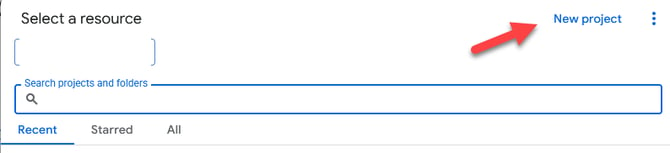
- Click the project selector at the top of the page
- Click New Project
- Enter a project name (e.g.
MyHub FileShare) and click Create - Make sure the new project is selected in the project selector before continuing


Step 2 — Enable the Google Drive API
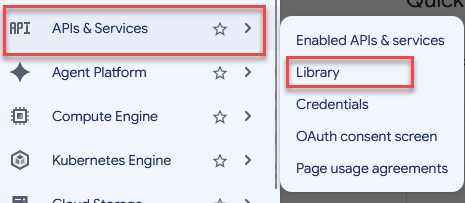
- In the left navigation, go to APIs & Services > Library
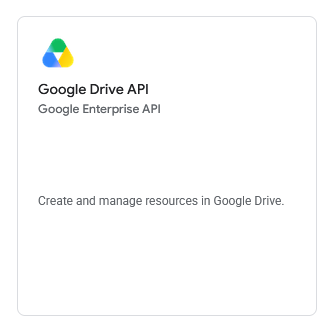
- Search for Google Drive API
- Click on Google Drive API in the results
- Click Enable
Step 3 — Configure the OAuth Consent Screen
The consent screen is what users see when they authorize the app. Even for internal/server-side use, Google requires it to be configured before creating credentials.
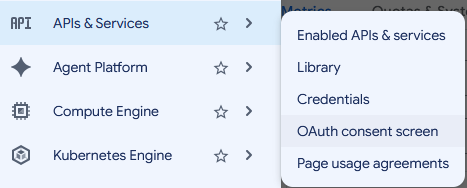
- Go back to the left navigation and select APIs & Services > OAuth consent screen
- Click Get Started
- Fill in the required fields:
- App name:
MyHub FileShare - User support email: your admin email address
- Developer contact information: your admin email address
- App name:
- Click Audience and choose the user type:
- Internal — for Google Workspace organizations (only org users can authorize)
- External — for any Google account (suitable for non-Workspace setups)
- Enter an email address in the Contact Information field
- Agree to the Google API Services: User Data Policy by ticking the box and click Continue
- Click Create
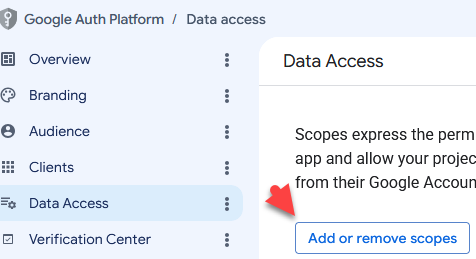
- In the left sidebar, click Data Access, then Add or Remove Scopes and add:
| Scope | Purpose |
|---|---|
https://www.googleapis.com/auth/drive.readonly |
Read files and metadata — required minimum |
The auth flow requests
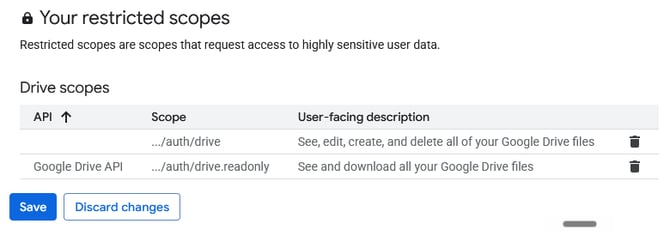
drive.readonlyexactly. When a user clicks Authenticate in MyHub, the OAuth URL sent to Google hardcodesdrive.readonlyas the scope. The consent screen must include this scope or Google will reject the authorisation. Do not substitutedrive.metadata.readonly— the module needs to read file content (not just metadata) for embed URL generation.Also add
https://www.googleapis.com/auth/drive(full Drive access). This is required to grantanyone/readerpermission on files so anonymous visitors can see them in iframes.
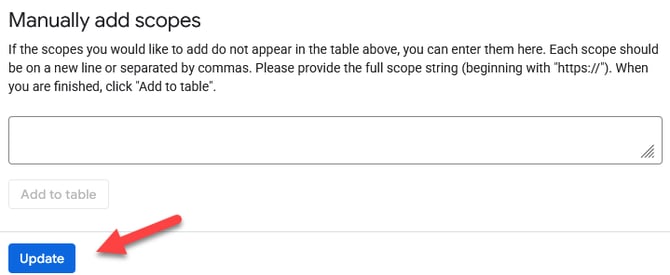
- Scroll down and click Update
- Scroll to the buttom again and you should see the scopes at the bottom and click Save
Step 4 — Create OAuth 2.0 Credentials
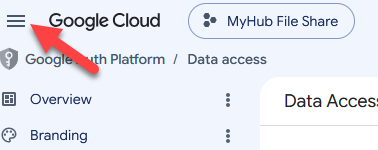
- Go back to the top sidebar and click the hamburger button
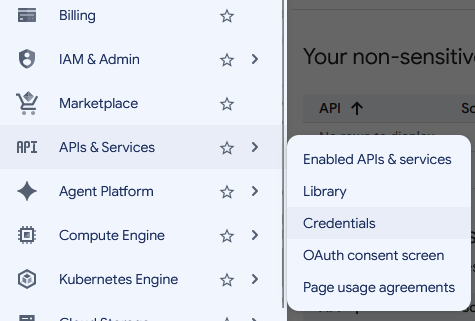
- Go to APIs & Services > Credentials
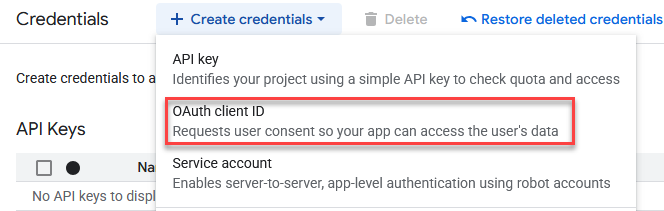
- Click Create Credentials > OAuth client ID
- Select Web application as the application type
- Enter a name, e.g. MyHub File Share
- Under Authorized redirect URIs, click Add URI
- Add the URL below:
https://filesprovider.myhubintranet.com/DesktopModules/MyHubModulesFileShare/API/FileShare/auth/callback
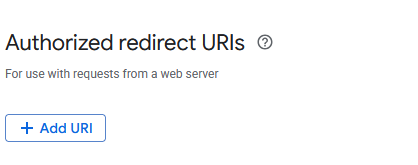
Google will reject the auth flow with a "redirect_uri_mismatch" error if the URI is not registered here exactly — including protocol (https), domain, and path. Under Authorised redirect URIs, click Add URI and enter the MyHub portal callback URL.
8. Click Create
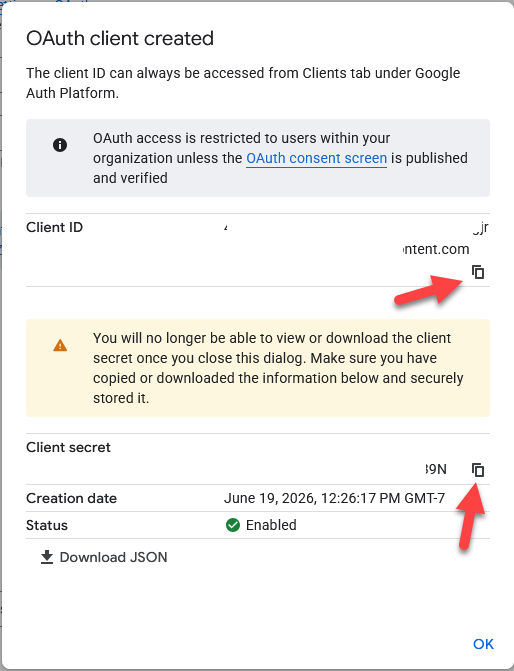
After creation, copy and save the following information, as you won't be able to see the client secret again once you've closed the window:
| Value | Field name |
|---|---|
| Client ID | clientId |
| Client Secret | clientSecret |
Credentials to Enter in MyHub
Once the above steps are complete, enter the following values in the MyHub FileShare provider configuration (accessible from Site Settings - File Share Settings or the module's Google Drive screen):
| Field in MyHub | Value |
|---|---|
| Client ID | OAuth Client ID from Step 4 |
| Client Secret | OAuth Client Secret from Step 4 |
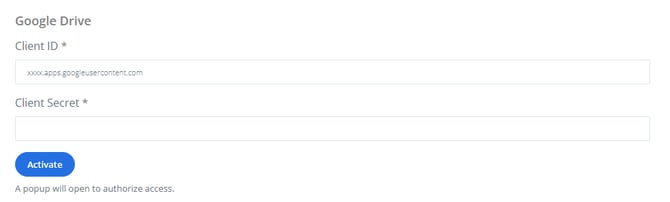
After entering the Client ID and Client Secret, click the Activate button. A Google sign-in window will open — sign in with the Google account whose Drive you want to connect and click Allow. Google redirects back to MyHub automatically and the connection is complete.
Required OAuth Scopes Summary
| Scenario | Required scopes |
|---|---|
| Intranet — users signed into Google | drive.readonly |
| For users to view without a Google account | https://www.googleapis.com/auth/drive (full access) |
Troubleshooting
Authentication fails with "redirect_uri_mismatch" or "Error 400: redirect_uri_mismatch" - The URI that MyHub sent to Google during the auth flow does not match any URI registered under Authorised redirect URIs in the OAuth 2.0 credential (Step 4). Go back to Google Cloud Console > APIs & Services > Credentials, click the credential, and confirm the production URI is listed exactly as: https://fileshare.myhubintranet.com/DesktopModules/MyHubModulesFileShare/API/FileShare/auth/callback - Check for trailing slashes, http vs https, or domain typos — Google matches the URI character-for-character.
Test connection fails with "Invalid Credentials" or 401 - The stored tokens have been revoked or expired in an unrecoverable way. Click the Authenticate button (Step 5) to sign in again and obtain fresh tokens. - This can happen if the Google account password was changed, the app was revoked from Google account settings, or the refresh token expired due to a long period of inactivity.
Files show in the picker but viewers see a Google sign-in prompt instead of the file - For portals where viewers are not signed into Google: the drive scope is required so MyHub can grant public read access on files. If only drive.readonly was requested during authorization, update the OAuth consent screen scopes in Google Cloud Console (Step 3) to include https://www.googleapis.com/auth/drive, then click Authenticate again in MyHub to get a new token with the broader scope.