
What This Guide Covers
This guide walks an administrator through setting up OneDrive for Business as a file provider in the Display and Share Files module. Once configured, content editors and administrators can browse a user's OneDrive and select files to display on your intranet pages.
Your instance of Azure/Entra may be different and options may be different, so some of these options/settings may be in different places.
OneDrive Personal vs OneDrive for Business
This module supports OneDrive for Business only (Microsoft 365 / Microsoft Entra ID accounts). Personal consumer OneDrive accounts (live.com, hotmail.com, outlook.com) are not supported.If you have AI Search enabled for your site, these files will be included in the search results.
Before You Begin
You will need:
- Access to your organisation's Azure Portal with permission to register applications and grant admin consent
- The email address or Azure AD Object ID of the OneDrive user whose files you want to access. No worries if you don't have this, we'll cover it later in the guide.
- A MyHub administrator account to enter the credentials into the FileShare module or in Site Settings - File Share Settings
Can I reuse the SharePoint app registration?
Yes. If you have already registered an app for SharePoint, you can add the OneDrive permissions to the same registration. You do not need a separate app. Just add the Microsoft Graph permissions in Step 3 to the existing registration.
Step 1 — Register an Application in Microsoft Entra ID
- Sign in to https://entra.microsoft.com (Microsoft Entra admin center)
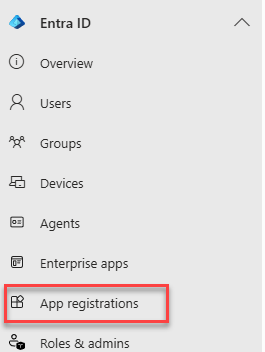
- In the left navigation, go to Entra ID > App registrations
- Click New registration
- Fill in the registration form:
- Name:
MyHub FileShare OneDrive(or any name that identifies this integration) - Supported account types: Select Accounts in this organizational directory only (Single tenant)
- Redirect URI: Leave blank — client credentials flow does not use a redirect
- Name:
- Click Register

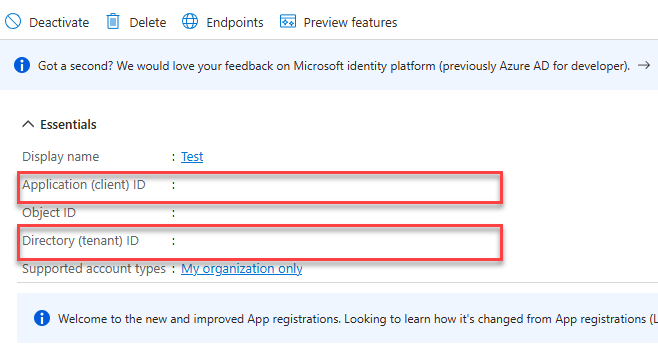
After registration, you will land on the app's Overview page. Note down the following, as you will need them later:
| Value | Where to find it |
|---|---|
| Application (client) ID | Shown on the Overview page — this is your clientId |
| Directory (tenant) ID | Shown on the Overview page — this is your tenantId |
Can I reuse the SharePoint app registration?
Yes. If you have already registered an app for SharePoint, you can add the OneDrive permissions to the same registration. You do not need a separate app. Just add the Microsoft Graph permissions in Step 3 to the existing registration.
Step 2 — Create a Client Secret
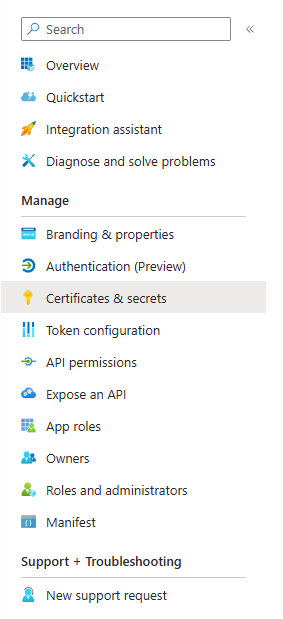
- In your app registration, select Certificates & secrets from the left menu
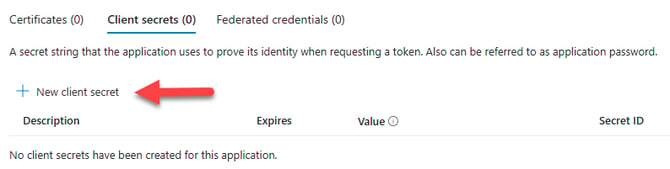
- Under the Client secrets tab, click New client secret
- Enter a Description (e.g.
MyHub FileShare) and choose an Expiry period. Please note the expiry period, with a reminder to create a new secret when it expires, as MyHub cannot see the secret or the expiry date. When it expires, you will need to create a new one and add it to your MyHub site. - Click Add
- Immediately copy the secret Value — this is your
clientSecret
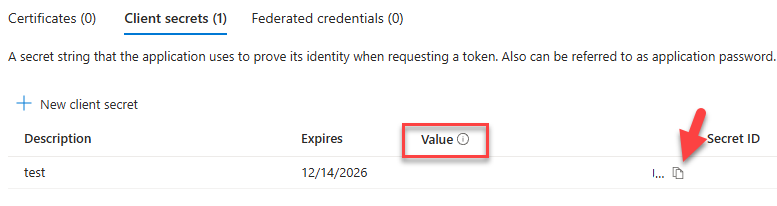
Important: The secret value is only shown once. If you navigate away without copying it, you must delete it and create a new one.
Step 3 — Grant API Permissions
OneDrive for Business uses Microsoft Graph (not the SharePoint API directly).
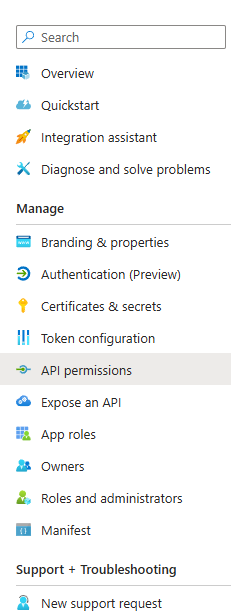
- In your app registration, select API permissions from the left menu
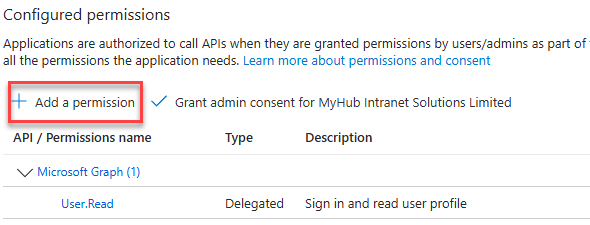
- Click Add a permission
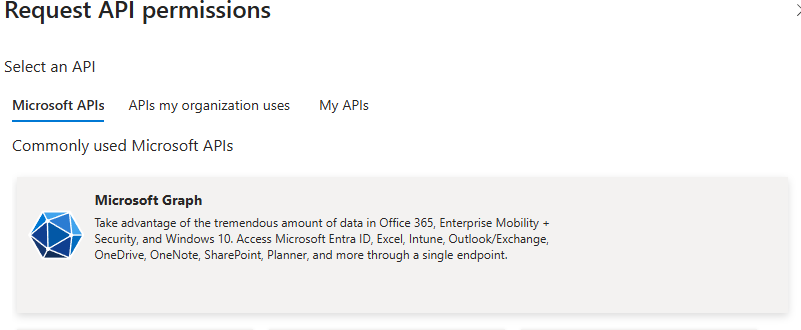
- Select Microsoft Graph from the list
- Select Application permissions (not Delegated)
- Find and check the following permissions:
| Permission | Purpose |
|---|---|
Files.Read.All |
Read files in all users' OneDrive accounts |
User.Read.All |
Resolve user identities (required to look up OneDrive by email address) |
- Click Add permissions
- Click Grant admin consent for [Your Organisation]
- Confirm by clicking Yes
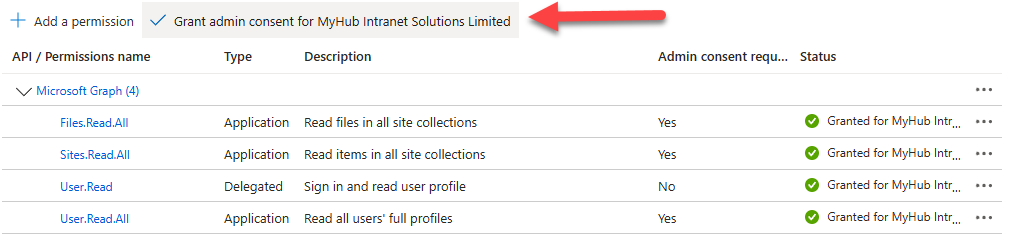
Both permissions should now show a green tick in the Status column.
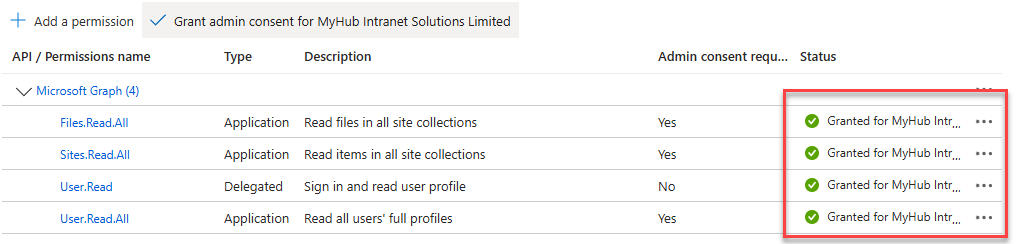
Why
User.Read.All? The module looks up the OneDrive drive by user ID. If you supply a user email address as theuserId, the module first resolves it to an Object ID via the Users API. WithoutUser.Read.All, this lookup fails. If you supply the Object ID directly,User.Read.Allis still required for the internal Graph SDK call pattern used by the provider.
Step 4 — Find the User ID
The userId identifies whose OneDrive the module will connect to. It can be either:
- Email address:
firstname.lastname@yourorg.com
Easy to get, but changes if the user is renamed or their email is updated. On that basis, we recommend using the object ID. - Object ID (recommended for production): A GUID that never changes even if the user is renamed.
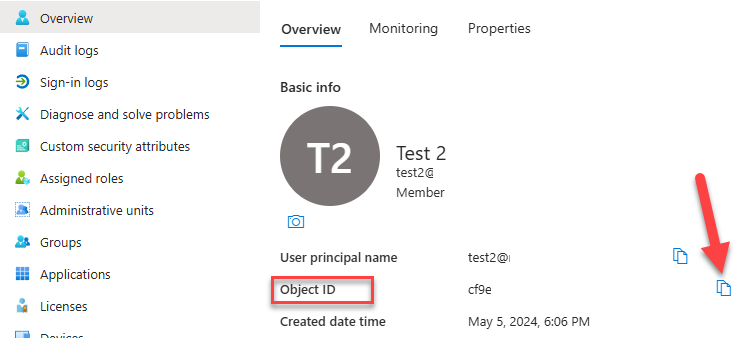
- To find it:
- Go to Microsoft Entra admin center > Identity > Users > All users
- Search for the user by name or email
- Click the user
- Copy the Object ID from the user's profile page
Credentials to Enter in MyHub
Once the above steps are complete, enter the following values in the MyHub FileShare provider configuration (accessible from Site Settings - File Share Settings or the module's Change Source screen):
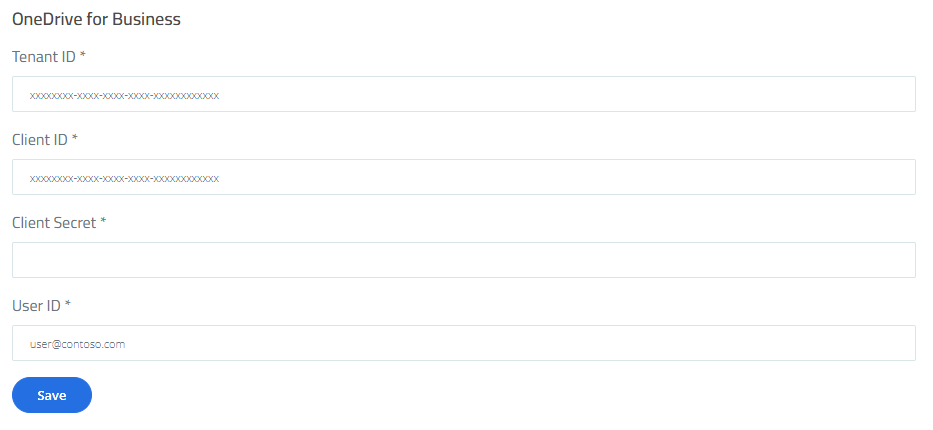
| Field in MyHub | Value |
|---|---|
| Tenant ID | Directory (tenant) ID from Step 1 |
| Client ID | Application (client) ID from Step 1 |
| Client Secret | Secret value from Step 2 |
| User ID | User email or Object ID from Step 4 |
Required Permissions Summary
| Permission | API | Type | Purpose |
|---|---|---|---|
Files.Read.All |
Microsoft Graph | Application | Read files and folders in OneDrive |
User.Read.All |
Microsoft Graph | Application | Resolve user email to Object ID |
Troubleshooting
Test connection fails with "User not found" : Confirm the userId is correct. Try switching between email address and Object ID. - Confirm User.Read.All has been granted (Step 3) and admin consent has been given.
Test connection fails with "Access denied" / 403 : Confirm admin consent was granted for both permissions (Step 3). Both must show a green tick. - Confirm the permissions are Application type (not Delegated).
Secret expired : Return to the app registration in the Microsoft Entra admin center, go to Certificates & secrets, delete the expired secret, create a new one, and update the clientSecret value in the FileShare module provider settings.